Home » Knowledge Hub »
How to clear cache, cookies & history on Chrome for mobile

The controls to clear your Cookies, Browsing history, cache and other data in Chrome for mobile – both iPhone and Android devices – can all be found in the same screen. For the steps regarding Chrome on desktop, see the following article:
Before doing so, you may find the following articles helpful:
Clearing browsing data on Chrome for iPhone & Android
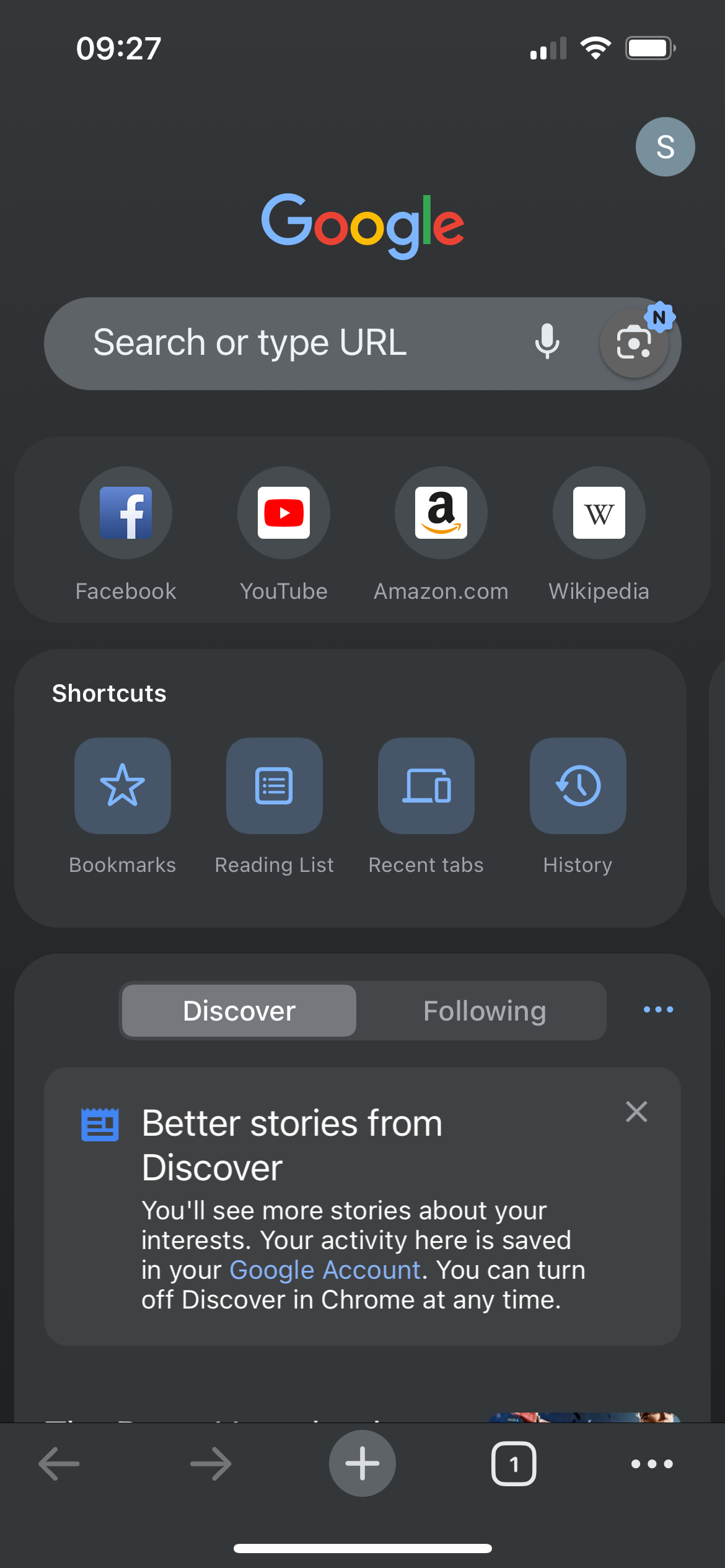
1. Open the Options menu
Look for three dots in a row. This may be in the top right or bottom right of the screen, depending on your device and browser version. You may also need to open a tab to see it.
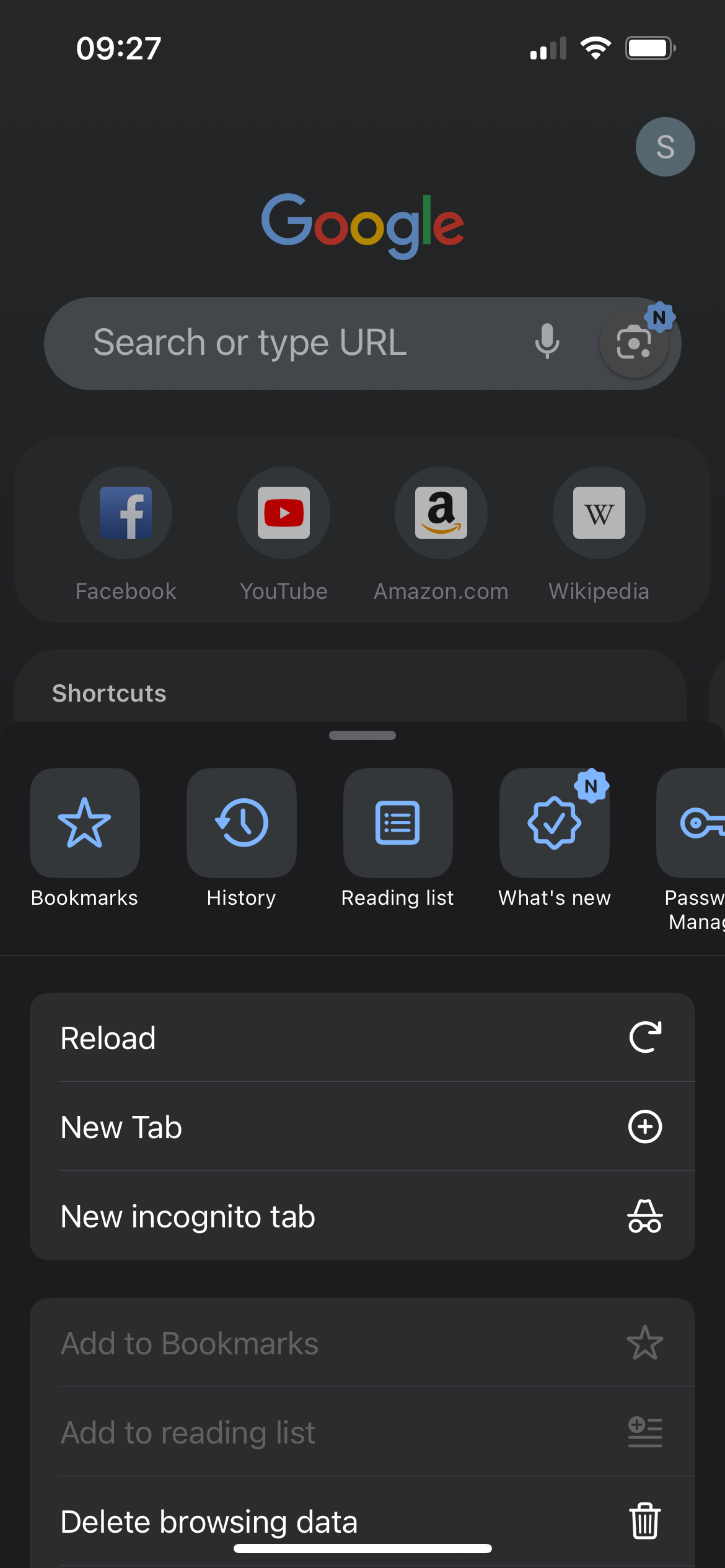
2. Go to ‘Clear Browsing Data’
Within the menu that pops up, find the option for ‘Clear Browsing Data’.
3. Select What to Clear
You’ll see a list:
- Browsing history
- Cookies, Site Data
- Cached Images and Files
- Saved Passwords
- Auto fill Data.
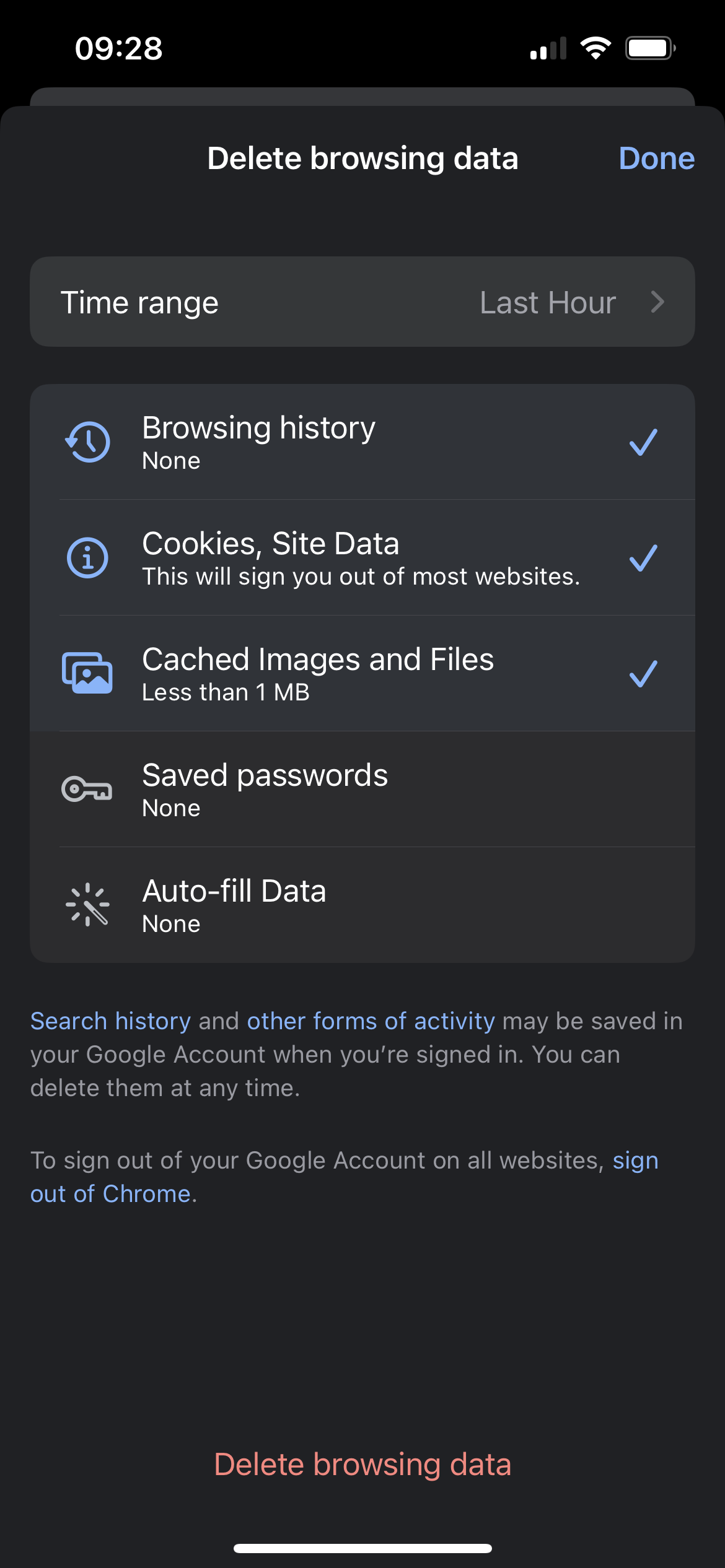
Tap on each item you want to clear. A blue checkmark means it’s selected.
4. Pick a Time Range
Choose how far back you want to clear the data.
Options include Last Hour, Last 24 Hours, Last 7 days, Last 4 Weeks, or All time.
“All time” wipes your entire Chrome history.
5. Confirm Clearing Data
Hit the red “Delete Browsing Data” button at the bottom, then say yes in the pop-up to confirm.
6. Finish Up
Press “Done” in the top right corner when you’re all set.
Was this article helpful?
We're sorry to hear that.
Can you tell us why?
Related articles

How to clear cache, cookies & history on Firefox

How to clear cache, cookies & history in Edge
Like what you’re reading? Take a look at our other articles
View all articles